Image review for Mac
Every image in a folder.
One infinite canvas.
Drop in a folder, subfolders included, and Zoomosaic lays out thousands of images as one wall you can zoom from overview down to single pixels. Re-sort it by color or similarity, surface duplicates, and rate, pick and reject without leaving the keyboard.
Free downloadmacOS 14 Sonoma or laterApple silicon and Intel
Real app footage: drop in a folder, zoom to a single pixel, re-sort by color, find similar sets, then focus and mark from the keyboard.
Made for people who look at images all day
- E-commerce and marketing review
- Design and asset sign-off
- Photo culling
- Picking AI-generated images
- Game art QA
- Dataset cleanup
Overview
See the whole folder at once
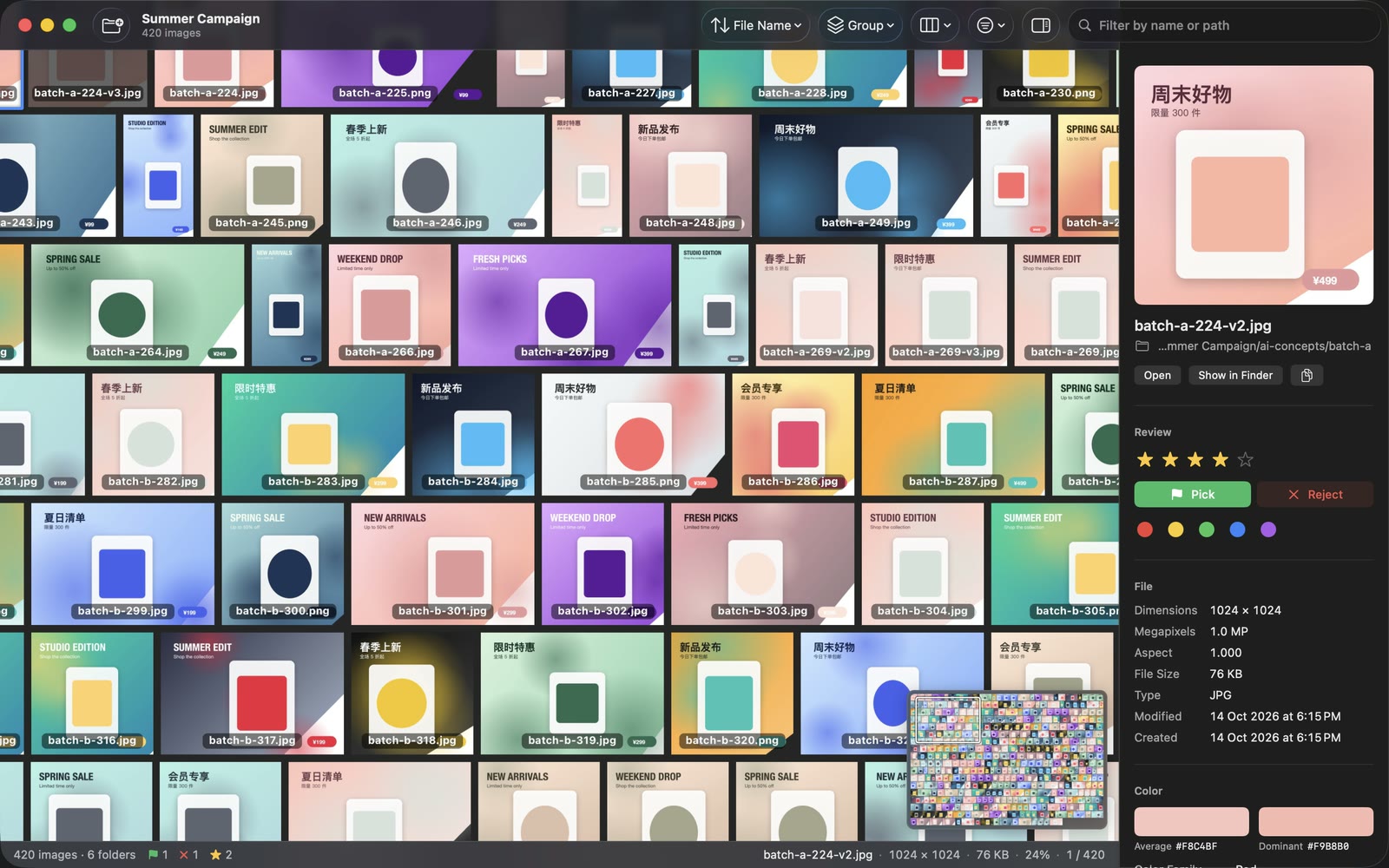
Drop a folder and every image inside it fills the canvas in seconds. Zoom all the way out and thousands of files become one mosaic, so you see the shape of the whole set — the outliers, the gaps, the repeats — before you open a single file.
- Scans subfolders; hidden files and packages are skipped
- JPEG, PNG, HEIC, WebP, AVIF, TIFF, PSD, camera RAW and everything else macOS can read
- Recent folders reopen from the welcome screen, and ⌘R reloads after files change, keeping your selection
Zoom
From overview to pixel in one scroll
Scroll to zoom around the pointer, pinch and pan on the trackpad, drag with momentum. Thumbnails sharpen as you get closer, from a tiny preview to full resolution, and ⌘1 shows actual pixels — one image pixel per screen pixel — so you can check focus, compression and edges.
- Stays smooth with tens of thousands of images
- Double-click an image to fill the window; double-click empty space to see everything again
- Minimap for navigation; the status bar shows the real on-screen zoom of the selected image
Arrange
Re-sort the wall in one click
Change the order and every image flies to its new place, so you always know what moved where. Sort by color and a messy folder turns into a rainbow; group by color family and each hue gets its own island.
- Sort by file name, folder, file type, file size, pixel dimensions, aspect ratio, date modified, date created, color, visual similarity or rating
- Group by folder, file type, same dimensions, orientation, color family, similar sets, rating or flag
- Grid, justified rows or masonry layout
- Every group is an island with a title: click it to zoom there, or press [ and ] to jump between groups
Duplicates
Find duplicates and near-duplicates Free
Similar Sets groups images that look nearly the same — re-exports, resized copies, small edits, versions — so repeats sit side by side instead of hiding hundreds of files apart. Or sort the whole wall by visual similarity to put look-alikes next to each other.
- Compares what images look like, not file names or bytes, so a JPEG and a PNG of the same picture still match
- Works across every subfolder you dropped in
- Keep the best with P, reject the rest with X, then move all rejects to the Trash in one step
Review
Review at keyboard speed
Press Space to focus one image while everything else dims, step through with the arrow keys and mark as you go. Your hands never leave the keyboard and your marks are saved the moment you make them.
- 1–5 to rate, 0 to clear · P to pick, X to reject, U to unflag
- 6–9 for red, yellow, green and blue labels
- ⌘Z and ⇧⌘Z undo and redo any mark
- Filter by rating, flag or file name; rejected images are dimmed on the canvas
Hand off
Get the results out
When the review is done, deliver it the way your team works: a spreadsheet of decisions, a folder of approved files, or images dragged straight into a chat.
- Export a review CSV: path, name, width, height, size, rating, flag, label and group of every marked image
- Copy the picks to a delivery folder; move rejects to the Trash (restorable from Finder)
- ⌥-drag images straight into Slack, Mail, messaging apps or Finder
- Copy paths, reveal in Finder, or open in your default editor
Single-image actions are always free, and your first 500 images in batch actions are free too.
Folders
Compare whole deliveries side by side Pro
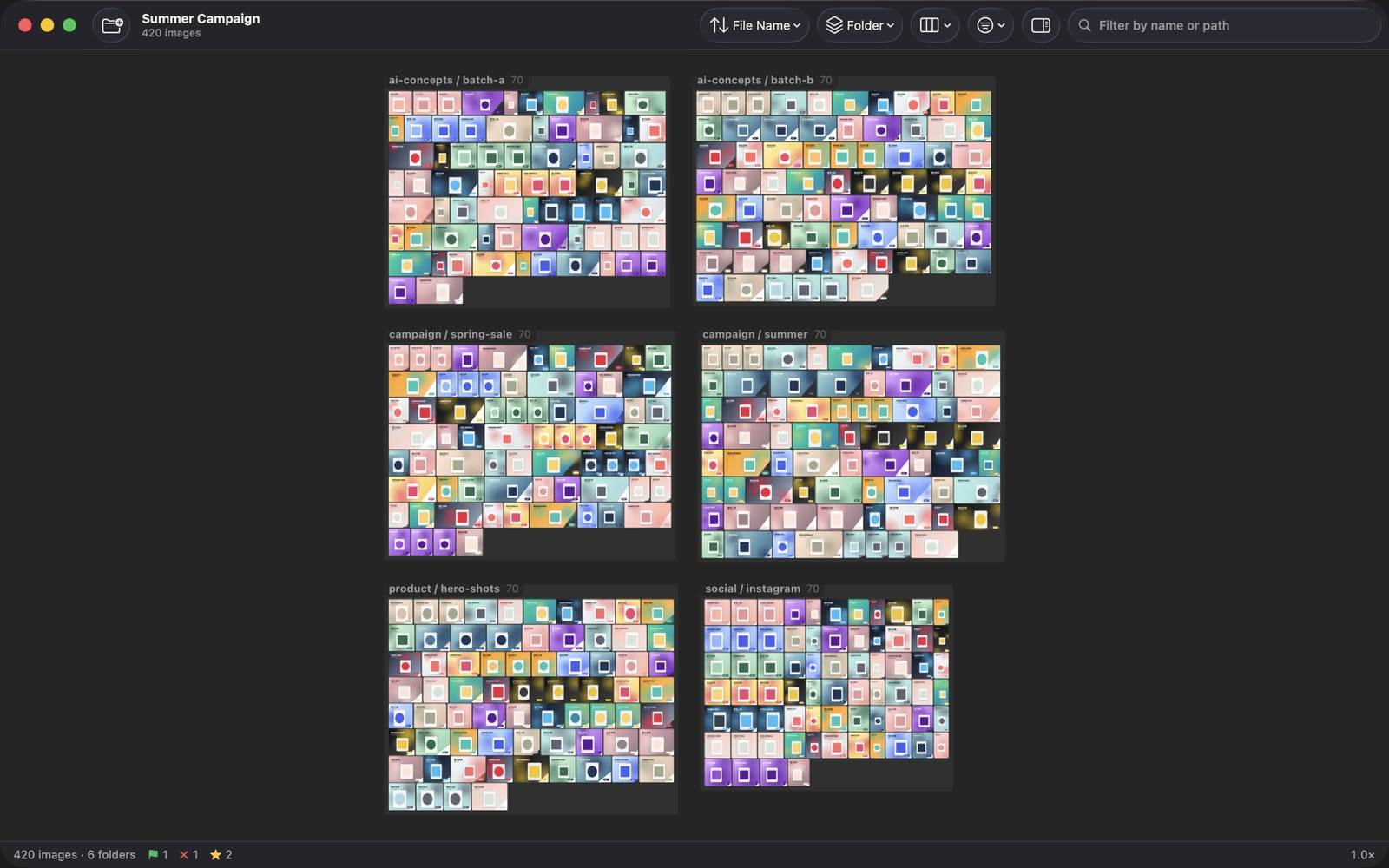
Group by folder and every subfolder becomes its own island, labelled with its path and image count. With Pro, add more folders to the same canvas to compare two shoots, two vendors or two versions of a campaign at once.
- Click a folder's title to fly straight to it
- Add Folder (⇧⌘O) or drop folders onto an open canvas
- Every sort, group and filter works across all folders together
Everything in Zoomosaic
A focused tool: no catalog, no import, no editing. Your folders stay the source of truth.
Canvas
- Infinite canvas with smooth, pointer-anchored zoom
- Trackpad pan and pinch, drag with momentum
- Mosaic overview that keeps huge folders fluid
- Minimap, fit all (F or ⌘0), actual pixels (⌘1)
- Neutral backgrounds: black, dark, middle or light gray, white, or match appearance
Arrange
- 11 sort orders, ascending or descending
- 9 ways to group into islands
- Grid, justified rows and masonry layouts
- Animated re-sorting
- Filter by name or path, rating and flag
Find
- Similar Sets for duplicates and near-duplicates
- Sort by visual similarity
- Sort by color, group by color family
- Same Dimensions groups for spec checks
- Orientation groups: landscape, portrait, square, panorama
Review
- Star ratings, pick and reject flags, color labels
- Focus mode with everything else dimmed
- Undo and redo for every mark
- Marks saved automatically per file
- Inspector: dimensions, file size, type, path, dates, average and dominant colors
Output
- Review CSV export
- Copy picks to a folder
- Move rejects to the Trash
- ⌥-drag files into other apps, ⌘C to copy files
- Copy path, reveal in Finder, open in default app
Made for Mac
- Native app for Apple silicon and Intel
- macOS 14 Sonoma or later
- 25 languages, including right-to-left Arabic and Hebrew
- Sandboxed, no account, works offline
- Never modifies your original files
Guides for common jobs
Step-by-step workflows for the things people use Zoomosaic for most.
Find duplicate and similar images
Group near-identical copies, keep the best, trash the rest.
Read the guide →Sort images by color
Turn any folder into a rainbow or split it into color families.
Read the guide →Cull photos from the keyboard
Rate, pick and reject a whole shoot without touching the mouse.
Read the guide →Review AI-generated images
Compare every variation at once and pick the winners.
Read the guide →Check e-commerce and marketing images
Catch wrong sizes, duplicates and off-brand colors before launch.
Read the guide →See every image in a folder at once
A contact sheet that never runs out of room.
Read the guide →Free to use. Pro when it's your job.
Viewing, sorting, finding duplicates and marking are free, with no limit on images. Pro removes the batch limit and puts several folders on one canvas.
Free
$0 no time limit
- Unlimited images and folders
- Infinite canvas, focus mode, minimap
- Every sort, group and layout
- Duplicate and similar-image sets
- Ratings, flags, color labels, filters
- Every single-image action
- Your first 500 images in batch actions
Pro
$19.99 per year
or$39.99 once, yours to keep
Launch price $34.99 through November 29
- Everything in Free
- Unlimited batch actions: copy, drag out, export CSV, copy to folder, move to Trash
- Multiple folders on one canvas
- Future Pro features included
Batch actions are actions on several images at once. Each image counts only once toward the free 500, and single-image actions never count.
Prices in US dollars; the App Store shows the price for your country. The yearly plan renews automatically and can be cancelled anytime in your App Store account settings.
Your images never leave your Mac.
Every bit of analysis happens locally. Zoomosaic has no account, sends nothing to any server, collects no data and never changes your originals.
Read the privacy policy →Questions and answers
Is Zoomosaic free?
Yes. Viewing, sorting, grouping, finding duplicates, marking and every single-image action are free with no limit on images. Your first 500 images in batch actions (copying, dragging, exporting or trashing several at once) are free too. Zoomosaic Pro removes that limit and adds multiple folders on one canvas.
Can Zoomosaic find duplicate photos?
Yes, for free. Group by Similar Sets and near-identical images — including resized, re-saved or slightly edited copies — are placed together so you can keep one and reject the rest.
Does it upload or change my images?
No. Everything is analysed on your Mac, nothing is uploaded, and your files are only read. Copying and moving to the Trash happen only when you choose those commands.
Which formats does it open?
Everything macOS can read: JPEG, PNG, HEIC/HEIF, WebP, AVIF, JPEG XL, TIFF, GIF, BMP, PSD, camera RAW, ICO, TGA and more.
How many images can it handle?
Folders with tens of thousands of images stay smooth. The first open analyses every image; later opens use a local cache and are much faster.
Which Macs does it run on?
Any Mac with macOS 14 Sonoma or later, Apple silicon or Intel.

Drop in a folder and see it all.
Free on the Mac App Store. Pro is optional.
Download on the Mac App Store